
MixMaster Pro Documentation
The user manual for MixMaster Pro - analyze mixes, run Standard and Professional audio tools, build workflows, work with Maya, and ship better records.
Need help navigating the platform?
Maya, your mentor, can answer questions about any feature, walk you through workflows, and help you find what you need.
Intro
MixMaster Pro is a professional mixing analysis and audio production platform built for music producers, mix engineers, and artists who want objective, actionable feedback - and the tools to act on it. Upload any track and receive a detailed breakdown covering frequency balance, dynamics, stereo imaging, loudness, transients, and more in under 60 seconds. Then keep going: Standard Audio Tools, 60+ Professional modules, and the Workflow Builder sit next to Maya so you can analyze, fix, deliver, and learn in one place.
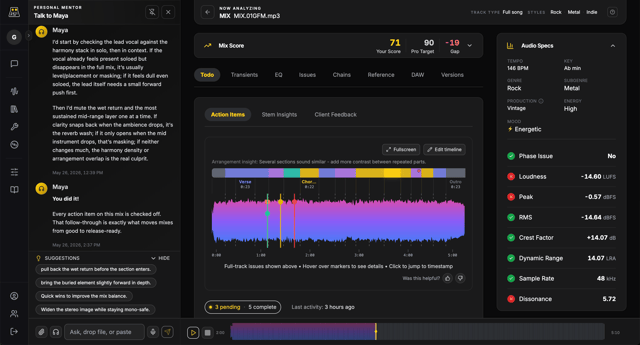
- Instant mix scoring with detailed parameter breakdowns
- Actionable feedback checklist with prioritized suggestions
- Waveform heatmap and interactive audio player for precise navigation
- Reference track comparison against professional masters
- Stem separation and per-stem analysis for deeper mix insight
- Personal Mentor (Maya) - a conversational music production coach for mixing, mastering, composing, lyrics, and more
- Client Revision Feedback - collect structured client comments without sharing dashboard access
- Standard Audio Tools: Stems, Karaoke, A Capella, Voice De-Noise, Audio Restoration, and Delivery Master
- Generation tools: Generate Songs from a prompt, Sound FX from a text prompt, and Text to Speech for scripts and voice-over beds
- Professional Audio Tools: 60+ modules for generation, mastering, stems, transcription, effects, mixing, and localization
- Workflow Builder - chain Professional modules on one upload with ready templates
- Full version history so you can track your progress over time
Whether you're a bedroom producer checking your first bounce or a professional engineer managing client revisions, MixMaster Pro scales to your workflow.
- Bedroom producers & beat-makers looking for a second opinion on their mixes
- Mix engineers who want quick QC before sending a bounce to the client
- Mastering engineers reviewing incoming mixes for technical issues
- Music students learning the fundamentals of mixing and audio engineering
- Artists and bands who self-produce and want professional-level feedback
The platform analyzes your audio against professional reference standards and returns a comprehensive report within seconds.
- 1Upload your mix (WAV, MP3, FLAC, or AIFF - Free up to 60 MB; Pro 100 MB; higher on Studio+)
- 2Your mix is scored across multiple dimensions (frequency, dynamics, stereo, loudness, and more)
- 3Review your analysis: scores, parameter details, actionable checklist, and waveform heatmap
- 4On Pro+, compare against reference tracks and upload revisions to track improvement
- 5On Pro+, use Maya for mix-specific coaching tied to your analysis (Free = platform assistance)
- 6When you need processing, open Audio Tools or Workflow Builder - Standard tools for cleanup and stems, Professional modules for mastering, transcription, and chained jobs
Getting Started
Sign up for free using your Google account. No credit card required to start analyzing your mixes.
- 1Click 'Login / Register' in the top navigation
- 2Sign in with your Google account
- 3You'll automatically start with the Free plan (3 mix analyses once, then Credits; 100 Credits once)
Ready to get professional feedback? Here's how to upload your mix:
- 1Go to 'New Analysis' from your dashboard
- 2Drag and drop your audio file or click to browse
- 3Supported formats: WAV, MP3, FLAC, AIFF (Free max 60 MB; see Pricing for higher limits)
- 4Free plan: Up to 6 minutes per track
Our AI will analyze your mix in under 60 seconds:
- 1Click 'Start Professional Analysis'
- 2Wait for the analysis to complete (usually 30-60 seconds)
- 3Review your detailed feedback and recommendations
- 4Apply the suggestions to improve your mix
A score is a starting point. The platform is built for a loop: analyze, fix in your DAW, re-upload, and (when useful) process audio with tools.
- 1Open Maya on the report and ask: "walk me through the top three things I should fix"
- 2Make small, targeted changes in your DAW - one problem at a time
- 3Upload a revision of the same mix (Pro+) so you can see what improved
- 4Use Standard tools for stems, karaoke, a capella, voice cleanup, or restoration
- 5Use Professional modules or a Workflow template for mastering, chord sheets, karaoke packs, remix prep, and multi-step jobs
Platform Features
Get professional mixing insights from our advanced AI trained on thousands of professional mixes.
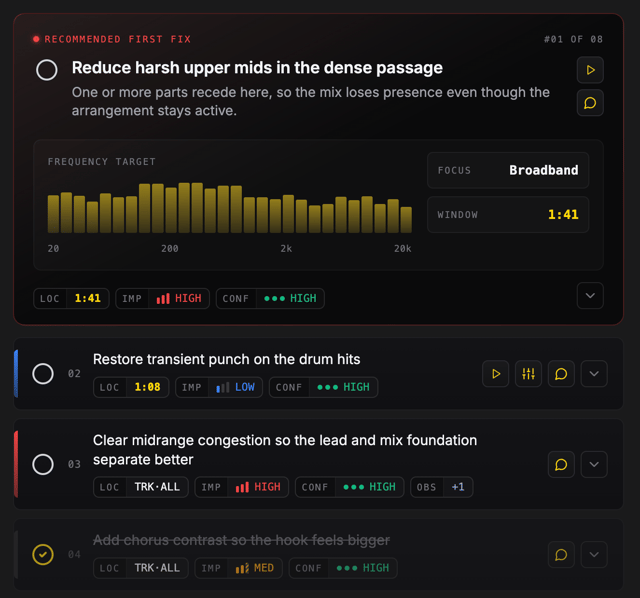
- Actionable mixing suggestions with technical explanations
- Problem identification and specific solutions
- Professional-grade recommendations
- Instant feedback in under 60 seconds
Comprehensive technical analysis of your mix's audio characteristics.
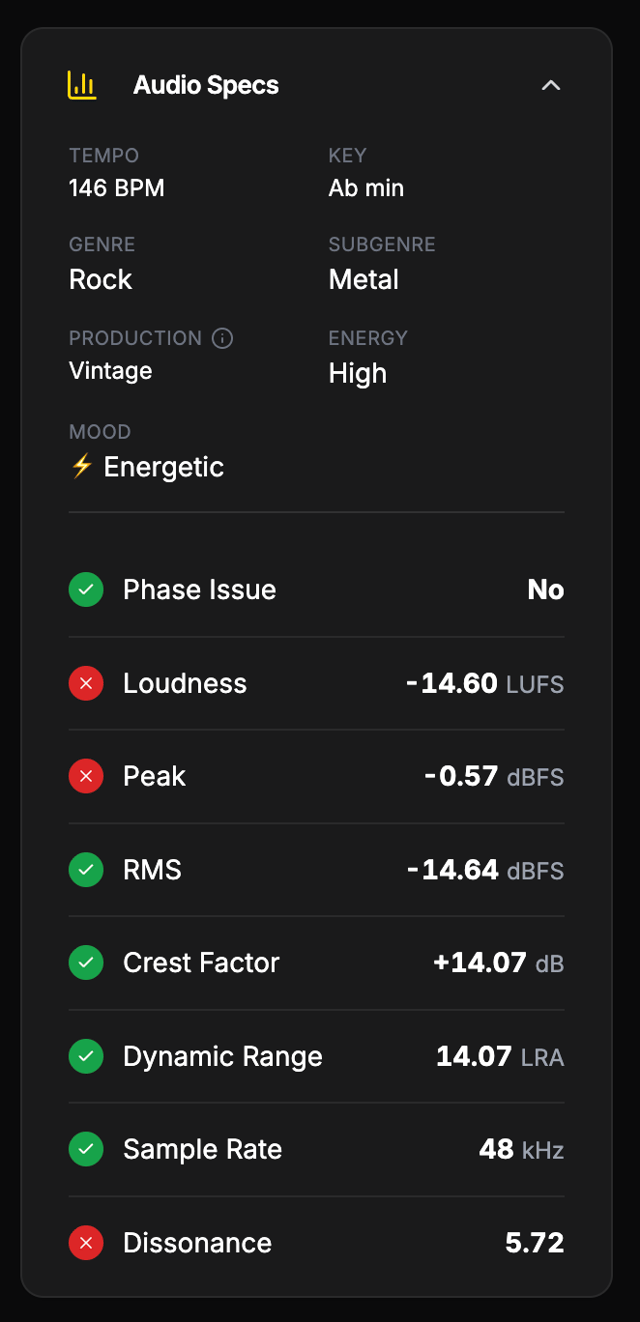
- LUFS loudness measurement
- Dynamic range analysis
- Peak level detection
- Frequency content analysis
- Stereo imaging assessment
Receive an objective score for your mix's technical readiness.
- Overall mix score (0–100 technical confidence)
- Detailed explanation of scoring factors
- Bands: Needs Attention, Solid Foundation, Strong, Excellent Technical Control
- Track improvements over time
Subscription Plans
Perfect for trying out our platform and getting a taste of professional feedback.
- 100 Credits once
- Sound FX generation
- Todo Action Items, Waveform & Transients
- Vibe Chat - Talk or type to get things done fast
- Maya voice
- Upgrade or buy usage any time.
- Credits: 100 once
- Analyses: 3 once
- Extra analysis: 250 Credits
- Maya voice: 10 min once
- Maya text: 100 msgs once
- Storage: 1 GB
- File retention: 90 days
- Pin forever: 0
- Max track: 6 min
- Professional concurrent jobs: 1
- Reference library: 0
- Maya chat: Platform assistant
- Queue: Standard
- Buy Credits
For serious artists and producers who want unlimited analysis.
- Everything in Free, plus:
- Get mix specific guidance from Maya in chat
- Visual EQ spectrum analysis
- DAW tips & processing chains
- Downloadable PDF analysis report
- Reference library & track comparison
- Versions: upload & compare revisions
- Maya voice
- Credits: 600
- Analyses: 60
- Extra analysis: 10 Credits
- Maya voice: 15 min
- Maya text: 150 msgs
- Storage: 75 GB
- File retention: 12 months
- Pin forever: 10 files
- Max track: 12 min
- Professional concurrent jobs: 2
- Reference library: Up to 10
- Maya chat: Private Mentor
- Queue: Standard
- Buy Credits
Get 2.5x more usage than Pro and unlock priority queue plus 3x Maya voice.
- Everything in Pro, plus:
- 2.5x usage vs Pro
- 2x analyses & storage
- 3x Maya voice
- Issues tab & Stem Insights
- Maya learns your style and remembers
- Client Revisions sessions
- Priority queue
- Credits: 1,500
- Analyses: 120
- Extra analysis: 10 Credits
- Maya voice: 45 min
- Maya text: 450 msgs
- Storage: 150 GB
- File retention: 24 months
- Pin forever: 50 files
- Max track: 30 min
- Professional concurrent jobs: 3
- Reference library: Up to 100
- Maya chat: Private Mentor
- Queue: Priority
- Buy Credits
Get maximum value with 7x usage vs Pro and room for longer sessions.
- Everything in Studio, plus:
- 7x usage vs Pro
- 5x analyses vs Pro
- 8x Maya voice vs Pro
- Early access to beta features
- Credits: 4,000
- Analyses: 300
- Extra analysis: 10 Credits
- Maya voice: 120 min
- Maya text: 1200 msgs
- Storage: 500 GB
- File retention: While under quota
- Pin forever: -
- Max track: 90 min
- Professional concurrent jobs: 5
- Reference library: Unlimited
- Maya chat: Private Mentor
- Queue: Priority
- Buy Credits
Collaboration for studios: 3 seats, pooled usage, and white-label Client Revisions.
- Everything in Studio+, plus:
- 13x usage vs Pro
- Collaboration
- 3 seats included
- White-label Client Revisions
- Credits: 8,000
- Analyses: 800
- Extra analysis: 10 Credits
- Maya voice: 120 min
- Maya text: 1200 msgs
- Storage: 1 TB
- File retention: While under quota
- Pin forever: -
- Max track: 90 min
- Professional concurrent jobs: 10
- Reference library: Unlimited
- Maya chat: Private Mentor
- Queue: Priority
- Buy Credits
Upload Rate Limits
All accounts share a monthly fair-use limit on mix analysis uploads to keep the platform reliable for everyone.
- Up to 300 mix analysis uploads per monthly period, including new analyses and revisions
- Your period resets monthly on the same calendar day you registered (UTC)
- Demo/sample analyses are not counted toward the limit
- Free plan users also have a separate included allowance of 3 mix analyses once (then 250 Credits / $5 each from purchased Credits; the signup grant cannot pay for extra mixes)
- Need higher volume? See Studio+ / Teams on Pricing, or contact support@mixmasterpro.io
Advanced Features
See your mix's frequency response with professional spectrum analysis tools. Free users can unlock on a mix with Credits or upgrade.
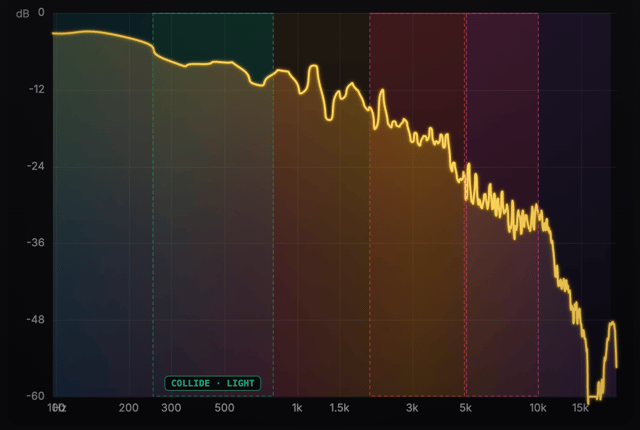
- 7-band frequency breakdown
- Interactive frequency tooltips
- Problem frequency identification
- Visual representation of mix balance
- Professional mixing context
Get tailored plugin chain suggestions for your specific Digital Audio Workstation.
- Vocal chain recommendations
- Mix bus processing suggestions
- Tonal goal guidance
- Plugin-specific settings
- Supports: Pro Tools, Logic Pro, Ableton Live, Cubase, Studio One, Reaper, FL Studio
Track your mixing progress by comparing different versions of your songs.
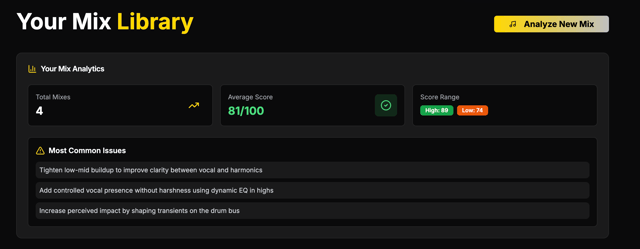
- Upload multiple versions of the same song
- Side-by-side analysis comparison
- Progress tracking over time
- Version history management
- Improvement metrics
Compare your mix against professional reference tracks to achieve industry-standard sound quality.
- Upload professional reference tracks
- Detailed frequency and dynamics comparison
- Identify gaps between your mix and commercial releases
- Actionable suggestions to match reference quality
Stems
Stems are isolated layers of your mix (vocals, drums, bass, instruments) so you can hear every part in context and make faster, more confident decisions.
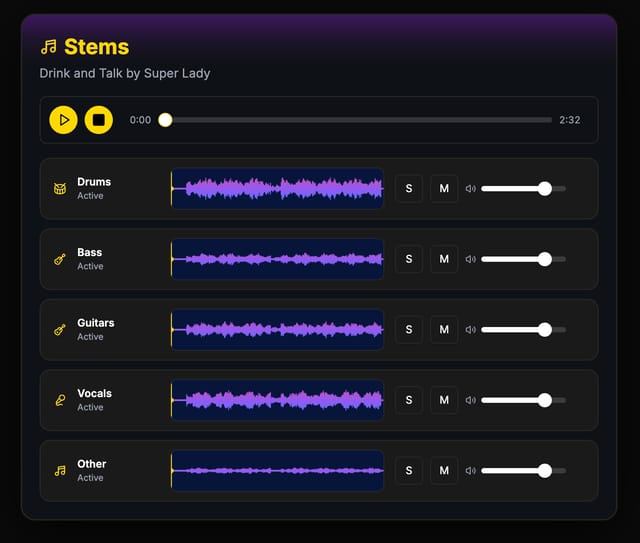
- Isolate vocals, drums, bass, and instruments in seconds
- Reveal masking, balance issues, and arrangement conflicts
- Use stems for cleaner revisions and client feedback
Create stems directly inside MixMaster Pro with just a few clicks.
- 1Open the Stems tab in the top navigation
- 2Select a mix or upload a new track for stems
- 3Click 'Generate Stems' and wait for the split to finish
- 4Preview stems instantly and download when ready
Stems help you solve problems faster and deliver cleaner mixes.
- Solo vocals to dial in depth, sibilance, and presence
- Check drum transients and low-end balance without guesswork
- Export stems for collaborators or re-import into your DAW
Stem Insights (Todo sub-tab) shows how each stem is behaving inside your full mix so you can rebalance fast and fix the right layer. Not the downloadable Stems tool.
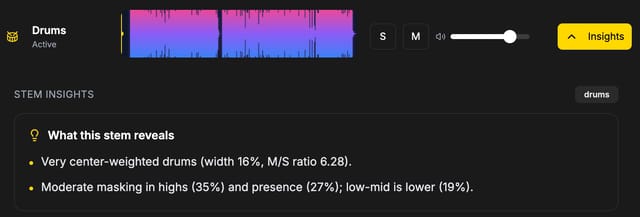
- 1Open any completed analysis and open Stem Insights on the Todo tab (Studio+, or unlock with Credits)
- 2Use Stem Insights to spot over- or under-powered layers
- 3Solo the highlighted stem and compare it to the full mix
- 4Apply targeted level, EQ, or compression changes in your DAW
- 5Re-run analysis to confirm the fix and keep iterating
Credits power Standard tools, Professional modules, and analysis overage.
- Standard 6-stem split: 30 Credits on paid plans (45 on Free), flat any length
- Karaoke / Voice De-Noise / Audio Restoration: 20 Credits each; Advanced modules minimum 5
- Free: 100 Credits once; paid plans include a monthly Credits grant
- Buy Credits anytime; only successful jobs debit (preview is free)
Karaoke
Karaoke removes the lead vocal from a finished mix and keeps a performance-ready instrumental backing track. Use it for practice, live sets, karaoke nights, and sync pitches when you never had a vocal-less bounce.
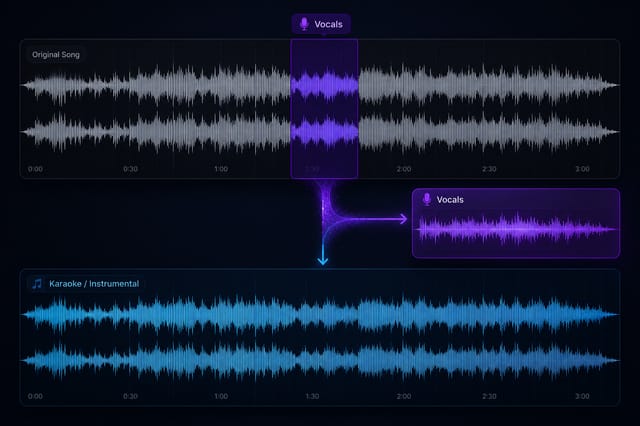
- Vocal removal from any stereo mix
- Full instrumental mix saved to your Tools library
- 20 Credits per successful file (flat, any length)
- Preview is free - Credits are only used when you process the full file
Open the Standard Audio Tools suite and process in a few clicks.
- 1Go to Audio Tools → Karaoke, or open /studio/karaoke
- 2Upload WAV, MP3, FLAC, or AIFF
- 3Preview the instrumental if offered, then process the full file
- 4Download from the Tools library when the job completes
Standard Karaoke is the fast, flat-credit path. Professional workflows add extras in one run.
- Use Standard Karaoke when you only need an instrumental backing track
- Use the Karaoke Pack workflow when you also want time-aligned lyrics
- Use Isolate Vocals / Vocals + Accompaniment when you need both the vocal stem and the backing
A Capella
A Capella isolates a vocals-only track from a finished mix - for remixes, samples, vocal-up edits, and studying a performance when you never got a dry stem.
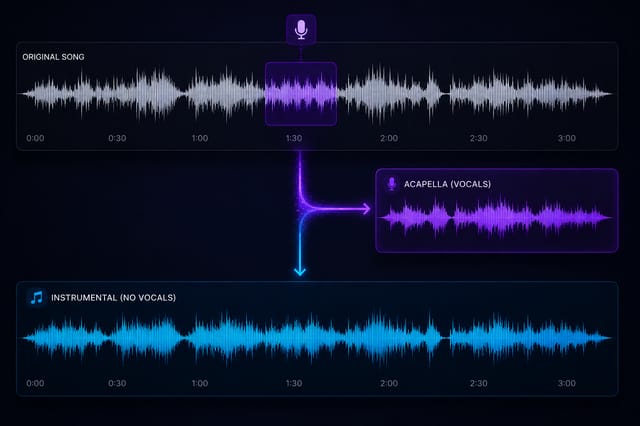
- Vocals-only export from any stereo mix
- Remix-ready file saved to your Tools library
- 20 Credits per successful file (flat, any length)
- Preview is free - Credits are only used when you process the full file
Same Standard Audio Tools flow as Karaoke, inverted.
- 1Go to Audio Tools → A Capella, or open /studio/acapella
- 2Upload your mix (WAV, MP3, FLAC, or AIFF)
- 3Process the file and wait for the vocal stem
- 4Download from the Tools library, or send the result into a Professional module if you need cleanup or upsampling
Pick the tool that matches the deliverable.
- Use Standard A Capella for a quick vocals-only bounce
- Use Isolate Vocals or Vocal Separation + Cleanup when you need a drier, de-reverbed vocal
- Use Vocal Upsample 48 kHz after isolation if the take was recorded or bounced at a lower sample rate
Voice De-Noise
Voice De-Noise is a dedicated audio cleanup tool that removes unwanted noise, electrical hum, room tone, and sibilance from vocal and dialogue recordings. It preserves the natural character of the voice while dramatically improving clarity - ideal for any recording where the voice is the primary element.
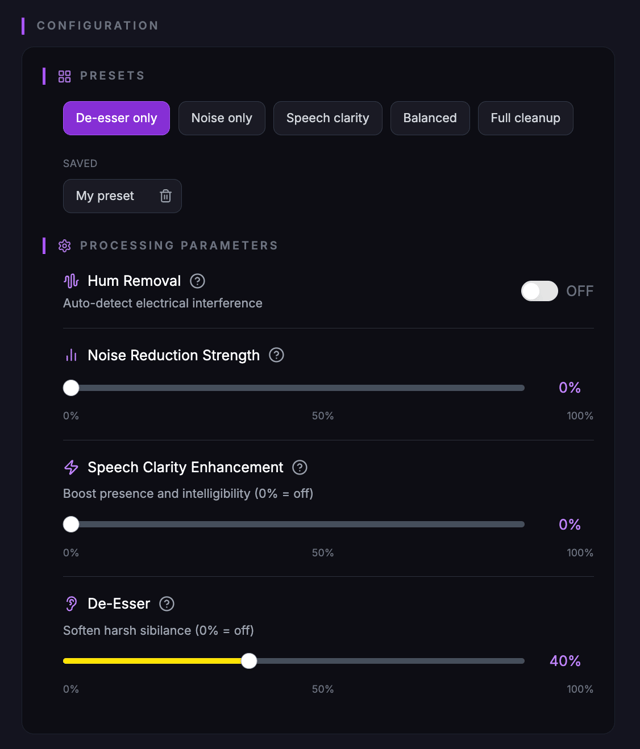
- Noise reduction - tames background hiss, air conditioning, fans, and ambient room noise without affecting the voice itself
- Hum removal - eliminates electrical buzz and ground-loop hum (50/60 Hz and harmonics) common in home studios
- Speech clarity - brings intelligibility forward by gently shaping presence and reducing muddiness in the vocal range
- De-esser - reduces harsh sibilance ('s' and 'sh' sounds) so vocals sit smoothly without brightness fatigue
- Preview before processing - listen to the result before spending a credit; tweak parameters until you're happy
Voice De-Noise is designed for any recording where a human voice is the main focus.
- Podcast episodes recorded in untreated rooms with noticeable background hiss or echo
- Voiceover and narration takes that picked up air conditioning, computer fans, or street noise
- Interview recordings from noisy environments (cafes, conventions, outdoor settings)
- Vocal tracks for music where the recording has room noise or mic bleed from headphones
- Field recordings of dialogue where wind or ambient sound competes with the speaker
- Zoom/remote recordings with inconsistent mic quality across participants
Process a vocal or dialogue file in a few steps:
- 1Open Voice De-Noise from the Audio Tools menu or Library → Tools
- 2Upload your audio file (WAV, MP3, FLAC, or AIFF)
- 3Adjust the noise reduction slider - start at medium and increase until background noise disappears without artifacts
- 4Toggle hum removal if you hear electrical buzz or low-frequency hum in the recording
- 5Increase speech clarity if the voice sounds muffled or lacks presence
- 6Use the de-esser if sibilant 's' or 'sh' sounds are harsh or distracting
- 7Hit preview to audition the result - no credit is used until you process the full file
- 8Click Process to run the full file; 20 Credits are used per successful run
Get the cleanest output by following these practical guidelines.
- Record at the highest sample rate your setup allows - de-noising preserves more detail on 48 kHz+ files
- Start with gentle settings and increase gradually; heavy noise reduction can introduce watery artifacts
- If the recording has multiple noise types (hiss + hum), address hum removal first, then layer noise reduction
- Preview on headphones to catch subtle artifacts that speakers might mask
- For music vocals, process the dry take before adding reverb or delay in your DAW for the cleanest chain
Voice De-Noise uses the same Credits pool as Stems and Audio Restoration.
- 20 credits per successfully processed file (flat, any length)
- Preview is always free - credits are only used when you process the full file
- Free gets 100 Credits once; paid plans include monthly Credits - buy more anytime on Pricing
Audio Restoration
Audio Restoration isolates and cleans up instrument recordings by reducing bleed, room noise, and unwanted resonances. Unlike Voice De-Noise (which targets speech), Audio Restoration is built for musical instruments - drums, bass, keys, guitars, and more - where you need the main source to stand on its own.
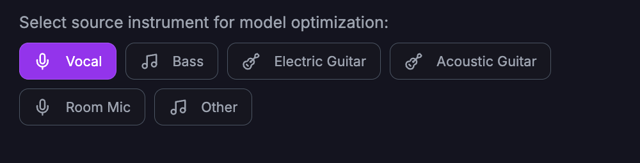
- Instrument / source type selection - choose drums, bass, keys, guitar, or other so the algorithm focuses on the right frequency ranges
- Strength control - set how aggressively bleed and noise are removed; lower for subtle cleanup, higher for heavy isolation
- Focus parameter - narrow or widen the spectral window the tool preserves around your chosen source
- Preview before processing - audition the cleaned result without spending a credit
- Same Credits pool as Stems and Voice De-Noise
Audio Restoration shines whenever an instrument recording has unwanted sounds bleeding into it.
- Drum overheads or room mics with excessive cymbal bleed into the snare/kick close mics
- Bass DI tracks with amp bleed or fret noise that muddies the low end
- Piano or keys recordings with pedal noise, bench creaks, or room reflections
- Acoustic guitar takes with pick noise, body resonance, or room ambience
- Live recordings where stage monitors or other instruments bleed into a mic
- Stems extracted from a mix that still carry residual artifacts from other layers
Clean up an instrument track in a few steps:
- 1Open Audio Restoration from the Audio Tools menu or Library → Tools
- 2Upload your audio file (WAV, MP3, FLAC, or AIFF)
- 3Choose the instrument or source type that best matches your recording (e.g. drums, bass, keys, guitar)
- 4Set the strength - start at medium; increase only if bleed is still audible after preview
- 5Adjust focus to control how wide the preserved frequency window is around your source
- 6Preview the result on headphones to check for artifacts or over-processing
- 7Process the full file when ready; 20 Credits are used per successful run
Practical scenarios showing how Audio Restoration fits into a real session.
- Drum cleanup: Run Audio Restoration on the snare close mic with source set to drums and medium strength to remove hi-hat bleed, then import the cleaned file back into your DAW for tighter gating
- Bass isolation: Process a bass amp recording to remove kick drum bleed leaking through the floor, giving you a cleaner DI-like signal for re-amping or mixing
- Live recording rescue: Take a keys track from a live set where the vocal monitor was bleeding in, restore it, and layer the clean keys back under the full mix
- Stem polish: After generating stems in MixMaster Pro, run Audio Restoration on any stem that still carries residual artifacts for a cleaner remix or arrangement edit
Audio Restoration uses the same Credits pool as Stems and Voice De-Noise.
- 20 credits per successfully processed file (flat, any length)
- Preview is always free - credits are only used when you process the full file
- Free gets 100 Credits once; paid plans include monthly Credits - buy more anytime on Pricing
Delivery Master
Delivery Master matches your mix to an optional reference and then applies streaming loudness for Spotify, Apple Music, YouTube, or Tidal. It is an own-engine Standard tool - the same Credits pool as Stems and Karaoke, with no extra vendor.
- Optional reference EQ match (octave-band tone matching)
- Spotify (−14 LUFS), Apple Music (−16 LUFS), YouTube and Tidal (−14 LUFS) packs
- 100 Credits per successful file (flat, any length)
- Preview is free - Credits are only used when you process the full file
- WAV master plus in-app AAC playback, saved to the Tools library
Open the Standard Audio Tools suite and process in a few clicks.
- 1Go to Audio Tools → Delivery Master, or open /studio/delivery-master
- 2Upload your mix (WAV, MP3, FLAC, or AIFF)
- 3Optionally upload a commercial reference to match tone
- 4Pick a delivery target, preview 30 seconds for free, then process the full file
- 5Download from the Tools library when the job completes
Professional Audio Tools
Professional modules are specialized processors you run from Audio Tools or the Workflow Builder. Unlike Standard tools (Stems, Karaoke, A Capella, Voice De-Noise, Restoration), each module is a focused job: isolate a piano, master to a reference, transcribe chords and lyrics, upsample a vocal, localize speech, and more. The full catalog is listed below - every module MixMaster Pro offers.
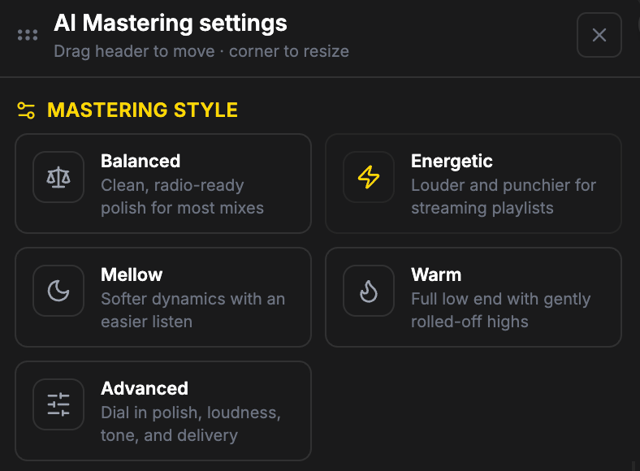
- 60+ modules across stem separation, mastering, mixing, transcription, enhancement, effects, classification, localization, encoding, and utilities
- Open a single module from Audio Tools → Professional, or chain several in Workflow Builder
- You always see a Credits quote and confirm before a job runs
- Failed jobs refund Credits automatically
- Audio and data results land in Library → Tools (WAVs download; chords, lyrics, and transcripts open in viewers)
Single-module jobs are the fastest path when you need one deliverable.
- 1Open Audio Tools and choose the Professional suite (or go to /studio/audio-tools?suite=professional)
- 2Search or browse by category and pick a module
- 3Upload your file (some modules need a second input, such as a reference for Reference Mastering or a voice sample for Voice Transfer)
- 4Review the quote, confirm, and wait for the job
- 5Download audio from the Tools library, or open interactive viewers for lyrics, chords, beat maps, and transcripts
Professional jobs use the same Credits pool as Standard tools and analysis overage.
- Advanced / Professional modules have a minimum of 5 Credits per job
- Cost scales with track length and the module you run - the quote is shown before charge
- Text to Speech is billed by character count, not duration
- Preview where offered is free; failed jobs refund
- Free includes 100 Credits once; paid plans include a monthly grant; buy packs anytime on Pricing
Use Standard tools for everyday cleanup and splits. Use Professional modules when you need a specialized deliverable or a chain.
- Standard Stems: 6-stem split at a flat 30 Credits (45 on Free)
- Professional Stem Separation Suite / Musical Stems Advanced: deeper packs (kit parts, guitar parts)
- Standard Karaoke / A Capella: one instrumental or one vocal file
- Professional: Karaoke Pack (instrumental + aligned lyrics), Voice Transfer, Audio Mastering, Chords + Beat Map, and more
All Professional modules
Every module in the catalog. Open the module page to learn more, or run it in Audio Tools.
Stem separation
Vocals + Accompaniment
Split a mix into vocals and instrumental accompaniment.
Stem Separation Suite
FeaturedVocals, drums, bass, and other - kit or guitar parts may also appear.
Musical Stems (Advanced)
FeaturedHigh-precision pack: up to 20 stems including kit parts and guitar parts.
Instrumental Backing Track
Create an instrumental backing track from a full mix.
Vocal Separation + Cleanup
Isolate vocals and reduce reverb / echo in one pass.
Mastering
Audio Mastering
FeaturedAI mastering with full control over intensity, EQ, loudness, and delivery format.
Reference Mastering
FeaturedMaster a mix toward the sound of a reference track.
Mixing
Stereo Mixing
FeaturedGenerate a professional AI stereo mix from up to 7 stems.
Audio Mixer
FeaturedMix up to 8 audio channels with per-channel volume and phase.
Transcription
Lyrics & Speech Alignment
Align your own lyrics or transcript text to the audio.
Subtitle Transcription + Alignment
Generate subtitle-ready transcription with timing.
Enhancement
Vocal Upsample 48 kHz
FeaturedAI upsampling that restores vocal bandwidth to 48 kHz.
Effects
Classification
Localization
Speech Translation + Localization
FeaturedTranslate speech and generate a localized voice.
Generation
Text to Speech
FeaturedGenerate spoken audio from text. Billed by character count.
Generate Fill
FeaturedGenerate a played musical part - bass line, riff, solo, chord bed.
Encoding
Utilities
Workflow Builder
Workflow Builder is a visual canvas where you chain Professional modules into one job. Upload once, wire Input through any sequence of modules to Output, confirm the quote, and every result lands in your Tools library. Ready templates cover karaoke packs, remix prep, release mastering, live rescue, podcast cleanup, play-along practice, and more.
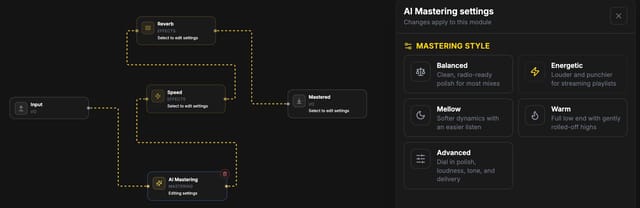
- Drag modules onto the canvas and connect audio or data ports
- One upload feeds the whole graph - no re-uploading between steps
- Ready templates auto-wire common jobs; save your own graphs to My Workflows
- Full Credits quote before you run; failed jobs refund
- Available on every plan - jobs spend Credits from your shared balance
Three steps from blank canvas (or a template) to downloads.
- 1Open /studio/workflows. Pick a ready template or start empty with Input and Output on the canvas
- 2Add modules from the palette, connect ports (audio vs data), and set module parameters
- 3Upload your file on Input. Review the quote, confirm, and run once
- 4Stems and audio download from Library → Tools; chords, lyrics, beat maps, and transcripts open in synced viewers
- 5Save the graph to My Workflows to re-run it on the next song
Start from a template when the job is a known pattern. Customize before you run.
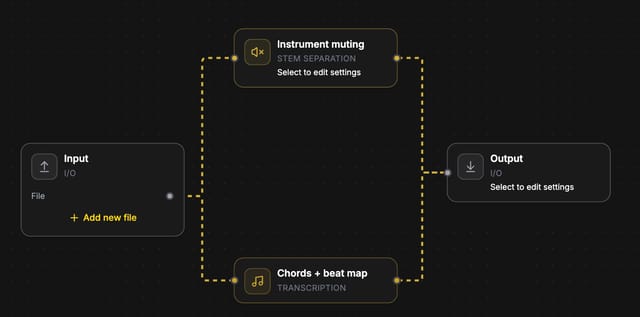
- Release Prep - master, encode an MP3, and pull genre/mood metadata
- Karaoke Pack - instrumental backing plus time-aligned lyrics
- Remix Prep Kit - four stems plus key, BPM, and beat grid
- Song Blueprint - sections, chords, and aligned lyrics
- Live Recording Rescue - trim silence, lift the vocal, then AI-master
- Podcast Cleanup - trim, loudness, and a word-aligned transcript
- Play-Along Practice - mute your instrument and get a chord sheet
- The full template list is below this section
Keep graphs simple and quotes predictable.
- Prefer a template, then delete modules you do not need - extra nodes add Credits
- Check each module's ports: audio goes to audio, lyrics/chords go to data
- For mastering, bounce a mix without a brickwall limiter first so the module has headroom
- For karaoke or practice packs, upload the full song rather than a clip so lyrics and chords align
- Save a named workflow per client or genre so you are not rebuilding the canvas every time
Ready workflow templates
Pre-wired graphs. Open one, confirm the Credits quote, and run it on a single upload.
Audio Mastering
Master your mix for pro-level delivery loudness and polish.
mastering
Use this templateInstrumental Backing Track
Remove lead vocals and keep an instrumental backing track.
stems · instruments · karaoke
Use this templateVocals + Accompaniment
Split a mix into vocals and instrumental accompaniment.
stems · vocals · mixing
Use this templateVoice Focus Mastering
Increase voice stem presence and master the new mix.
vocals · mastering · ai
Use this templateDrums Focus Mastering
Focus the mix on drums with mastering-oriented processing.
drums · mastering · ai
Use this templateGuitar Focus Mastering
Increase the guitar stem and master the new mix.
guitar · mastering · ai
Use this templatePitch Shift
Adjust the pitch of an audio file without changing tempo.
effects · pitch
Use this templateStem Separation Suite
Separate vocals, drums, bass, and other for remixing.
stems · musical · mixer
Use this templateFull Musical Stems
High-precision pack: auto-detect and separate every instrument found - vocals, drums/kit, bass, guitars, piano, keys, strings, wind, and more.
stems · musical · instruments · full
Use this templateChords & Lyrics
Detect chords + beat map and transcribe time-aligned lyrics in one run. Results open together in the Library with a synced player.
transcription · chords · lyrics
Use this templateKaraoke Pack
Instrumental backing track plus time-aligned lyrics in one run - everything you need for karaoke night.
karaoke · lyrics · instruments · creative
Use this templatePlay-Along Practice
Mute your instrument (guitar by default - change it in the module settings) and get the chord sheet to play from.
practice · chords · guitar · creative
Use this templateSong Blueprint
The full map of a song: intro/verse/chorus sections, chords + beat grid, and time-aligned lyrics.
transcription · chords · lyrics · analysis
Use this templateSpeed Trainer
Practice version at 75% tempo without pitch change - adjust the factor, or transpose with the pitch module.
practice · effects · tempo · pitch
Use this templateRemix Prep Kit
Four stems (vocals, drums, bass, other) plus key, BPM, and beat grid - everything a remix or DJ set needs.
stems · chords · remix · mixer
Use this templateRelease Prep
Master the track (WAV), encode an MP3 for quick sharing, and pull genre / mood / musical metadata for distribution.
mastering · metadata · encoding · release
Use this templateSlowed + Reverb
The classic slowed + reverb edit: 85% speed into a big room reverb.
effects · creative · reverb
Use this templateLive Recording Rescue
Trim dead air, lift the vocal, then AI-master a stereo live recording so a board mix, venue capture, or phone take sounds louder and more finished. Voice-focus has no knobs - change style and loudness on Audio Mastering.
live · mastering · vocals · cleanup
Use this templatePodcast Cleanup
Trim silence, level the episode to podcast loudness, and get a word-aligned transcript.
podcast · speech · transcription · effects
Use this templateDub / Localize
Translate and localize spoken content for another market - set the target language in the module settings.
localization · speech · translation
Use this templateAudio Mixer
Mix up to 8 channels with volume and phase. Add new file on Input to grow channels.
mixing · mixer
Use this templateStereo Mixing
AI stereo mix from stems. Input exposes one upload per stem channel.
mixing · stems · ai
Use this templateVoice Transfer
Recast a vocal onto a target voice. Upload the source take, then set the target-voice file on the module.
vocals · enhancement · voice
Use this templateSpeech Noise Suppression
Clean background noise from speech or dialogue.
speech · podcast · enhancement
Use this templateTranscribe Lyrics
Pull sung lyrics as text without timing alignment.
lyrics · transcription
Use this templateInstruments Detection
List which instruments are present in the mix.
classification · metadata
Use this templateText to Speech
Generate spoken audio from a script. Paste text on the module; billed by character count.
voice · generation · speech
Use this templateSound FX
Generate a one-shot or loopable sound effect from a prompt. No audio upload.
generation · sfx · foley
Use this templateDemo Pack
Generate a full demo track from a prompt. Analyze the result in the library when you want stems and a master.
generation · song · demo
Use this templateKaraoke Inverse
Upload an instrumental bed and generate a vocal (or lead) over it. Paste lyrics on the module if you have them.
generation · vocals · karaoke
Use this templateRemix Add-On
Generate a new part over your mix - a solo, a vocal, a pad - locked to the uploaded bed.
generation · remix · fill
Use this templateTrailer / Podcast Pack
Voiceover, a sound effect, and an instrumental bed from prompts. No upload. Mix them in Studio.
generation · voice · sfx · trailer · podcast
Use this templatePersonal Mentor (Maya)
Maya is your Personal Mentor inside MixMaster Pro - an AI music production coach that knows your mix, your analysis scores, your revision history, and your references. Unlike generic AI chat, Maya's answers are grounded in the specific audio you uploaded. She can help with mixing, mastering, composing, songwriting, lyrics, arrangement, music theory, sound design, and creative direction - essentially anything related to making music.
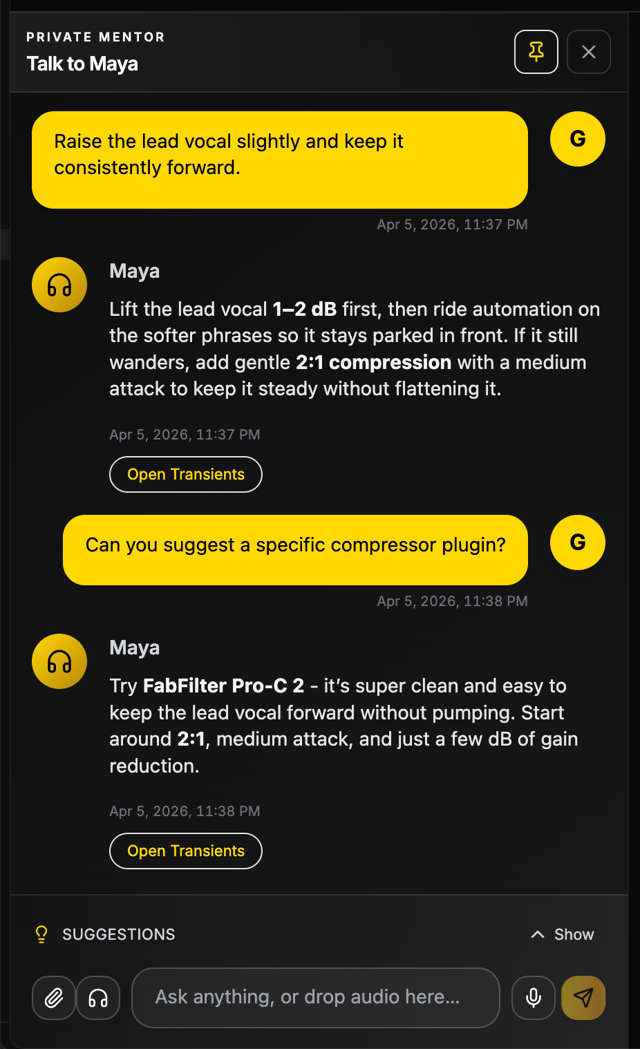
- Context-aware coaching tied to your analysis data, scores, checklist, and stems
- Covers the full music production spectrum: mixing, mastering, composing, lyrics, songwriting, arrangement, music theory, sound design, and creative direction
- Typed chat and voice conversation in any language
- Remembers the full thread - ask follow-ups without repeating yourself
- Understands your revision history and can compare versions
- References your attached reference tracks for A/B comparison advice
Start a typed conversation with Maya from anywhere in the app.
- 1Open a saved mix from the Library (Continue Improving or View Report) - this binds your analysis to the chat so Maya knows your scores and checklist
- 2Type your question in the chat composer at the bottom of the Mentor panel
- 3Maya responds with actionable advice grounded in your analysis - frequencies, dB amounts, DAW steps, and creative suggestions
- 4Ask follow-ups: "what about the low end?", "how would I do that in Ableton?", "can you help me write a bridge for this track?"
- 5Upload a reference track or revision directly in chat for instant comparison feedback
Talk to Maya like you would a studio partner - hands-free while you work in your DAW.
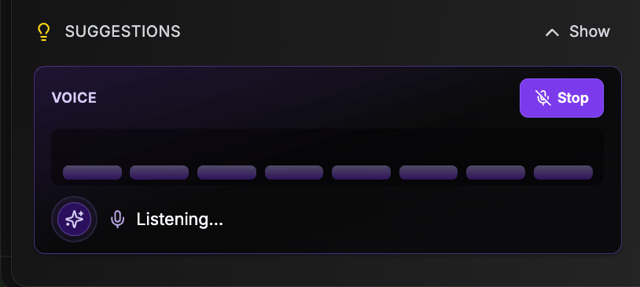
- 1Tap the microphone icon in the Mentor chat panel
- 2Speak naturally in any language - Maya detects and replies in the same language
- 3Maya answers with spoken audio tied to your mix context, just like typed chat
- 4Use voice for quick questions while your hands are on the faders: "what should I fix first?", "is my low end too boomy?", "give me a chord progression idea in D minor"
- 5Switch between voice and text freely within the same conversation thread
Maya covers the full music production journey, not just mixing. Here are examples of topics and questions.
- Mixing: "My vocals feel buried - what EQ and compression moves should I try?"
- Mastering: "Is this mix ready for mastering? What limiter settings would you suggest?"
- Composing & arrangement: "The chorus feels flat - how can I build more energy in the arrangement?"
- Songwriting & lyrics: "Help me write a second verse that follows the emotional arc of the first"
- Music theory: "What chord substitution would add tension before the chorus resolves?"
- Sound design: "How do I create a wide pad sound for the intro using a synth?"
- Creative direction: "I want this track to feel like a late-night drive - what production choices reinforce that mood?"
- DAW workflow: "How do I set up a parallel compression bus in Logic Pro for my drums?"
- Reference comparison: "How does my low end compare to this reference track?"
- Version feedback: "What improved between version 1 and version 2?"
Practical ways to use Maya throughout your production process.
- First analysis review: Upload your bounce, get the analysis, then ask Maya "walk me through the top three things I should fix" for a prioritized action plan
- Mid-session check: Bounce a quick revision, upload it, and ask "did my EQ changes on the vocals improve clarity?" - Maya compares the new version against the original
- Reference matching: Attach a reference track in chat and ask "how can I get my low end closer to this reference?" for specific frequency and processing suggestions
- Lyric and composition help: Even without a bound mix, ask Maya for help writing lyrics, building chord progressions, or arranging sections
- Pre-mastering checklist: On a high-scoring mix, ask "is this ready for mastering and what should I tell the mastering engineer?"
- Learning: Ask Maya to explain any concept - "what is mid-side processing and when should I use it?" - and get a clear, practical answer
Mix-specific Maya coaching starts on Pro+. Free is platform assistance only. Studio and above (Studio / Studio+ / Teams) add Maya memory / style learning across sessions.
- Pro+: mix-specific Personal Mentor (typed + voice within included minutes) with analysis context, revisions, reference A/B, and production coaching
- Free: platform assistant mode - navigation, plans, and product help (10 min Maya voice once)
- Studio / Studio+ / Teams: Maya memory / style learning on top of Pro+ coaching
- Voice minutes: Free 10 once · Pro 15 · Studio 45 · Studio+ / Teams 120 per month, then 8 Credits/min if you continue
Client Revision Feedback
Client Revision Feedback lets you collect structured, timestamped feedback from clients on your mixes - without giving them access to your MixMaster Pro dashboard. You share a private link and access code; the client opens a dedicated review page, listens on an interactive waveform, and leaves threaded comments pinned to specific moments in the audio. No account required on their end.
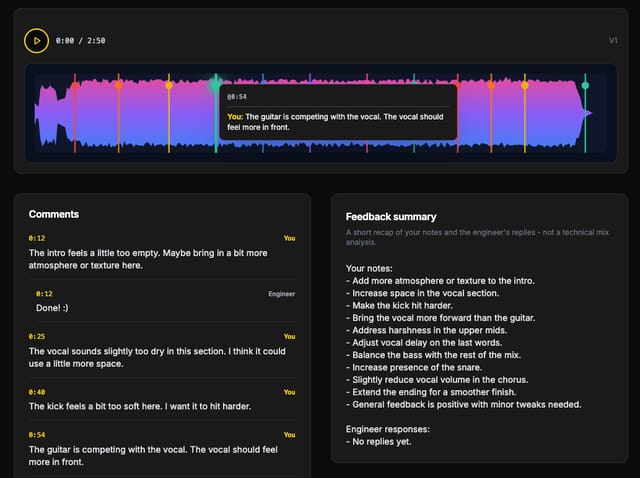
- Private review page with waveform playback - clients hear exactly what you bounced
- Timestamped threaded comments pinned to specific moments in the audio
- No MixMaster Pro account required for clients - just a link and a code
- Share via Email, WhatsApp, Telegram, or copy the link manually
- Attach new bounces to the same session so clients always hear the latest revision
- Close reviews when the round is done - clients cannot add new comments after closure
Set up a review in under a minute.
- 1Open the mix analysis you want reviewed in your Library
- 2Click Send client review (or the client-review entry in the analysis UI)
- 3A modal opens - create a new session and copy the access code (shown once, so store it safely)
- 4Choose how to send the invite: Email, WhatsApp, or Telegram buttons generate a pre-filled message with the link and code; or copy the link and message to send however you prefer
- 5Your client opens the link, enters the access code, and lands on a private review page with waveform playback
The client experience is simple and focused - no learning curve.
- 1Client opens the private link and enters the access code you shared
- 2They see the waveform and can play / scrub through the entire mix
- 3They click on a point in the waveform to pin a comment to that timestamp
- 4Comments are threaded - they can reply to existing threads or start new ones
- 5When they're done, they tap Finish review; you get notified in the app
Keep revision rounds organized without email chains or shared folders.
- 1Read client feedback in the Client Feedback tab on the analysis (insights row next to Action Items)
- 2When you bounce a new revision, attach it to the same review session from the modal so the client hears the latest mix without needing a new link
- 3If the session points at the wrong upload, switch it to the correct analysis from the same flow
- 4If your client loses the access code, open the modal and use Generate new code (copyable) - the new code is shown once
- 5Close the review from your side when the revision round is complete; clients cannot add new comments after closure
- 6Start a new session anytime for the next round of revisions
A typical client revision cycle using MixMaster Pro.
- You finish a mix bounce, upload it to MixMaster Pro, and run analysis
- From the analysis page, click Send client review and copy the link + code
- Send the invite via WhatsApp to your client with one tap
- The client listens, pins three comments: "vocals too quiet at 1:32", "love the drum fill at 2:15", "can we try less reverb on the bridge?"
- You address the notes in your DAW, bounce a new version, and attach it to the same session
- The client re-listens, confirms the changes, and taps Finish review
- You close the session - everything is documented in the Client Feedback tab for your records
Client Revisions is included on Studio+ (Studio / Studio+ / Teams). Teams can white-label the review page. See Pricing for current details.
- Studio+: create client review sessions (fair use)
- Clients never need a MixMaster Pro account or subscription
- Each session has its own access code for privacy and security
Best Practices
MixMaster Pro works best as a loop, not a one-shot score. Analyze, decide, change, and prove the change. That is how mixes actually get finished.
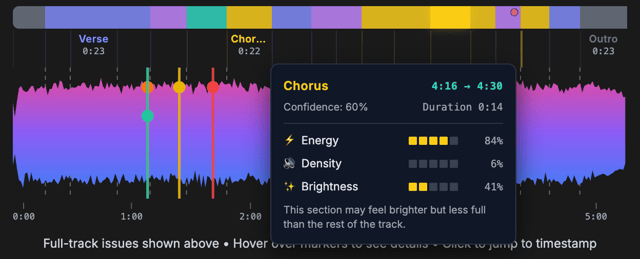
- 1Bounce the mix, premaster, or master you want scored and upload New Analysis
- 2Read Action Items in priority order - fix the biggest problem first
- 3Ask Maya: "walk me through the top three things I should fix in my DAW"
- 4Make small moves (1–2 dB, one EQ band, one compressor change) and bounce a revision
- 5Upload the revision on the same mix (Pro+) and compare what improved
- 6Repeat until the score and your ears agree - then master or send to the client
Get the most accurate feedback by following these guidelines:
- 1Export your mix at the highest quality (24-bit WAV preferred)
- 2Ensure your mix represents your final creative vision
- 3Mixes, premasters, and masters are all supported — filename does not change the result
- 4Leave 1–2 dB of peak headroom so true-peak and LUFS readings stay honest
- 5Include all elements you want feedback on
- 6Keep the original dynamics of your mix intact
How to interpret and apply your analysis results:
- 1Start with the highest priority suggestions first
- 2Use the mix score as a technical guideline, not a quality judgment
- 3Consider your artistic vision - not all 'problems' need fixing
- 4Test recommendations in small increments
- 5Re-analyze after making changes to track improvement
- 6If Stem Insights flags a layer, solo that stem, then change level or EQ in the DAW - do not process the whole mix first
Pick the shortest path to the file you actually need.
- Mix still in progress → New Analysis + Maya + revisions. Do not master yet.
- Need isolated parts to remix or rebalance → Standard Stems, or a Professional stem pack if you need kit/guitar splits
- Need an instrumental or vocal-only file → Karaoke or A Capella
- Podcast, VO, or noisy vocal → Voice De-Noise (or Speech Noise Suppression for dialogue-only)
- Bleed on drums, bass, or guitars → Audio Restoration
- Need a full song, lyrics, or instrumental demo → Generate Songs (describe it, or paste your lyrics)
- Need a sound effect, riser, or ambience → Sound FX (describe it in a text prompt)
- Need a voiceover or spoken take → Text to Speech
- Need a delivery master → Audio Mastering or the Release Prep workflow
- Need chords, lyrics, or a practice pack → Chords + Beat Map, Lyrics + Alignment, or a Workflow template
- Several steps on one song → Workflow Builder so you upload once
Credits are a shared pool. Spend them on jobs that move the song forward.
- Always preview Standard tools when the UI offers it - preview is free
- Read the Professional / Workflow quote before you confirm
- Do not stack overlapping stem modules on the same file unless you need different packs
- Free: 100 Credits once, then buy a pack or upgrade. Paid plans refill monthly.
- Analyses past your included allowance also draw Credits (10 on paid, 250 / $5 on Free from purchased Credits)
- Failed jobs refund. If a result is wrong, do not immediately re-run the same graph - check the file and module settings first
Maya is most useful when a mix is bound to the chat.
- Open the mix from Library (Continue Improving / View Report) before you ask mix questions
- Ask for one next action, not a 20-plugin chain: "what should I fix first on the vocal?"
- After a revision, ask what improved instead of starting a new thread
- Drop a reference in chat when you want A/B advice
- Free chat is platform help only. Mix-specific coaching starts on Pro+
- Voice is for hands-on DAW work; type when you need exact frequencies and settings to copy
Keep revision rounds out of email chains.
- 1Analyze the bounce, then send Client Revisions (Studio+) with the link and code
- 2Ask the client to pin comments on the waveform instead of writing timestamps in chat
- 3Bounce the next version, attach it to the same session, and close the round when they finish
- 4Use Maya to turn client notes into DAW steps if you want a translation from "vocals too quiet" to a gain/EQ move
Tips to maximize the value of your subscription:
- 1Upload different sections of long songs to stay within time limits
- 2Use version comparison to A/B test your changes
- 3Take advantage of DAW-specific recommendations
- 4Analyze different genres to learn mixing techniques
- 5Save Workflow templates you reuse (karaoke pack, release prep) so Credits quotes stay familiar
- 6Pin important mixes before retention windows if you need them forever (Pro+)
Troubleshooting
Common solutions for file upload problems:
- 1Ensure file is under 100MB in size
- 2Check that format is WAV, MP3, FLAC, or AIFF
- 3Try refreshing the page and uploading again
- 4Check your internet connection stability
- 5Clear browser cache if uploads keep failing
What to do if your analysis fails or seems incorrect:
- 1Ensure your audio file isn't corrupted
- 2Try uploading a shorter version of the same track
- 3Check that your mix has actual audio content (not silence)
- 4Contact support if analysis consistently fails
- 5Verify your account plan allows the upload
Managing your subscription and account:
- 1Check your current plan in Account Settings
- 2Use 'Manage Subscription' for billing changes
- 3Contact support for plan-related issues
- 4Free includes 3 analyses once + 100 Credits once (not a monthly refill); buy Credits or upgrade to continue
- 5Downgrades take effect at next billing cycle
Parameter Explanations
Measures the perceived loudness of your audio over time. This is the most important metric for ensuring your mix competes well on streaming platforms like Spotify and Apple Music, which normalize audio to a target LUFS level (usually around -14 LUFS).
The absolute highest level your audio signal reaches. A true peak level above 0 dBFS (decibels full scale) will cause digital clipping and distortion. It's good practice to leave some headroom, typically keeping peaks below -1.0 dBFS.
Represents the average power or loudness of a section of audio. While LUFS measures perceived loudness, RMS gives a more general sense of the track's sustained energy. Higher RMS levels often mean a 'fuller' or more compressed sound.
LRA measures the variation between quiet and loud parts of your mix. Higher values indicate more dynamic music with greater contrast between sections. Modern pop typically has 4-7 LRA, while classical music can have 15+ LRA. Too low suggests over-compression.
A digital audio measurement where 0 dBFS is the maximum possible level before clipping occurs. All other levels are expressed as negative values (e.g., -6 dBFS). This is different from analog dB measurements and is crucial for digital audio production.
Measures L/R energy differences and channel independence. High values often come from hard panning or wide effects and do not guarantee perceived spaciousness.
Describes how wide the mix feels musically, based on center dominance versus side support and overall cohesion in the stereo field.
Measures the amount of harmonic tension or 'clashing' frequencies within your mix. While some dissonance is natural and adds character, excessive levels can make a mix sound muddy, harsh, or musically unpleasant.
The detected tempo of your track. This helps our AI understand the groove and energy of your music to provide more context-aware feedback, especially for rhythmic elements.
The total length of your audio track in minutes and seconds. This helps contextualize other metrics and ensures the analysis covers the complete song structure.
The number of times per second that the audio is sampled to create the digital signal. Common sample rates are 44.1 kHz (CD quality) and 48 kHz (standard for video). A higher sample rate can capture more detail.
Refers to the sequence of audio processors (EQ, compressors, effects) applied to individual tracks or the mix bus. Our AI analyzes your mix and suggests optimal processor chains for vocals, drums, and mix bus to achieve professional results.
Occur when left and right stereo channels cancel each other out, causing problems in mono playback and reducing stereo separation and perceived width. Phase problems can make your mix sound thin or hollow, especially on mono playback systems like smartphones.
Happens when frequencies from different instruments compete for the same sonic space, causing elements to lose clarity and definition. Our analysis identifies frequency ranges where masking occurs and suggests EQ adjustments to create separation.
Analyzes how energy is distributed across the frequency spectrum in your mix. A well-balanced mix has appropriate energy in sub-bass, bass, low-mids, presence, and high frequencies. Imbalances can make mixes sound muddy, harsh, or thin.
The initial attack portion of sounds like drum hits, plucked strings, or vocal consonants. Well-defined transients add punch and clarity to your mix. Transient analysis helps identify if your mix needs more or less punch in rhythmic elements.
In compression, this is how quickly the compressor responds to signal peaks. Fast attack times can tame harsh transients but may reduce punch, while slow attack times preserve transients but allow peaks through. Our analysis suggests optimal attack times for different sources.
Refers to energy in the 2-6 kHz frequency range that makes vocals and lead instruments 'cut through' the mix. Proper presence ensures clarity and intelligibility without harshness. Too much creates fatigue; too little makes elements sound buried.
Measures how frequently new musical events (note onsets, hits, changes) occur in your track. Higher density indicates busier, more complex arrangements, while lower density suggests simpler, more spacious music. This affects mixing approach and processing choices.
A measurement that indicates how well your track will translate on radio and streaming platforms. It considers loudness, dynamic range, and frequency balance to predict commercial viability. Higher PLR scores suggest better broadcast compatibility.
Your music production software (Pro Tools, Logic Pro, Ableton Live, etc.). Our AI provides DAW-specific recommendations, suggesting exact plugin chains, settings, and workflows tailored to your particular software's strengths and available tools.
Documentation FAQ
WAV, MP3, FLAC, and AIFF. Free: up to 60 MB and 6 minutes. Pro: 100 MB / 12 min. Studio: 150 MB / 30 min. Studio+ / Teams: 250 MB / 90 min. See Pricing for the full matrix.
Most analyses complete in 30-60 seconds. Longer tracks or heavy demand can push runs closer to two minutes, but we process files as soon as they arrive.
No. MixMaster Pro gives fast, objective feedback and DAW-specific chains, but you stay in control of creative decisions. Use it to validate and speed up your workflow.
Credits power Standard tools, Professional modules, and analysis overage. Free: 100 once. Paid plans: monthly grant. Stem split 30 Credits (45 on Free); karaoke / voice / restoration 20; Advanced minimum 5. Preview is free; failed jobs refund. Buy packs anytime on Pricing.
On Studio+, open your analysis Todo → Stem Insights, review the stem that's flagged as too loud or too soft, and make small, targeted moves in your DAW (level, EQ, compression). Solo the stem to verify, then re-run the analysis. Lower plans can unlock Stem Insights on a mix with Credits.
Maya is your Personal Mentor: an AI music production coach. Free: platform assistance (navigation / product). Pro+: mix-specific coaching grounded in your analysis, revisions, and references (typed + voice within included minutes). Studio+ also remembers your style across sessions.
Yes on Pro+. Ask Maya about chord progressions, song structure, lyrics, arrangement, mastering prep, limiter settings, and creative direction - typed or voice in any language.
Tap the microphone icon in the Mentor panel. Included minutes: Free 10 once · Pro 15 · Studio 45 · Studio+ / Teams 120 per month. After included minutes you can continue with 8 Credits per extra minute if you choose; voice stops at 0 Credits. Free is platform assistance by voice; Pro+ can ground voice in the open mix report.
Studio and above (Studio / Studio+ / Teams) can start a Client Revisions session: share a link plus a private access code. Clients hear the mix on a waveform, leave timestamped comments, and finish without an account. Teams can white-label the review page.
Voice De-Noise targets human voice recordings (podcasts, voiceover, vocals) and removes hiss, hum, and sibilance. Audio Restoration targets musical instruments (drums, bass, keys, guitar) and removes bleed, room noise, and resonances. Both cost 20 Credits and offer free preview.
Professional modules are specialized jobs - mastering, deep stem packs, chords and lyrics, vocal upsample, voice transfer, localization, effects, and more. Open one module from Audio Tools → Professional, or chain several in Workflow Builder. You always see a Credits quote first (minimum 5 Credits). Failed jobs refund.
A visual canvas that chains Professional modules on one upload. Pick a ready template (Karaoke Pack, Remix Prep, Release Prep, Live Recording Rescue, Podcast Cleanup, and more) or drag modules onto a blank canvas. Confirm the quote, run once, and collect every output in Library → Tools.
Use Standard Stems, Karaoke, A Capella, Voice De-Noise, or Restoration when you need one everyday deliverable at a flat credit price. Use a Professional module or Workflow template when you need a specialized result (AI master, chord sheet) or several steps from a single upload.
Yes. MixMaster Pro is a web app that works in any modern browser on desktop, tablet, or phone. No download required. Maya voice mode, audio playback, and all analysis features work on mobile.
You can share a read-only mix score link for quick collaborator views. For listening-and-commenting workflows, use Client Revisions (Studio+) to send a private link so clients can leave timestamped feedback on the waveform.
No. Mix score is technical confidence from 0–100, not a quality bar against a Pro Target 90. Bands are 0–69 Needs Attention, 70–79 Solid Foundation, 80–89 Strong, and 90–100 Excellent Technical Control. 90 is the celebration / excellent-control band, not a marketing benchmark.
Ready to Perfect Your Sound?
Analyze a mix, ask Maya, then run the tool or workflow that matches the job - from stems to a release master.